

Handles the edge cases
Asks when it can't decide
Survives lost answers
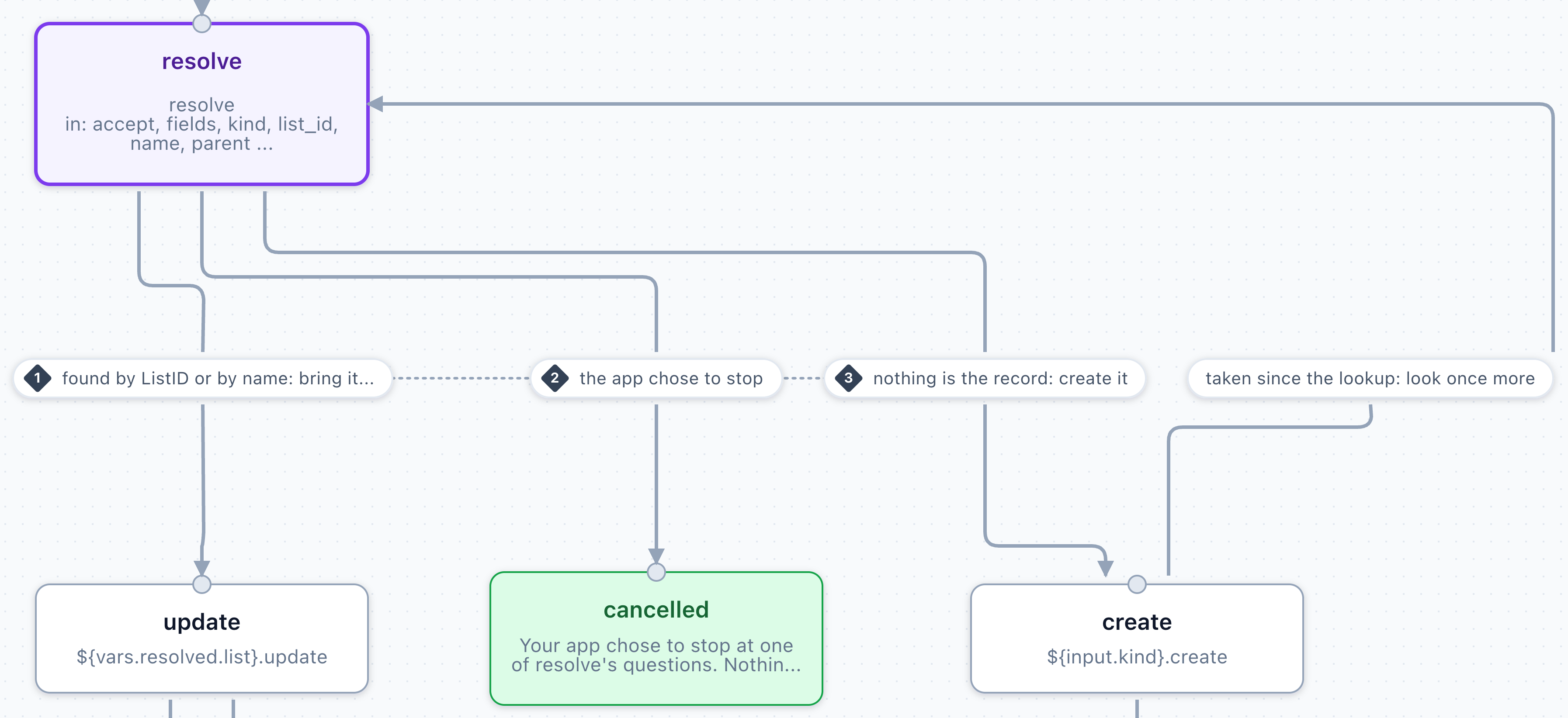
Upsert anything in QuickBooks: find it, then update it, or create it when nothing is it. If another person or app takes the name between the lookup and the create, it looks once more.
Workflows run on realtime connections
A run waits on QuickBooks at every step, and often on a person answering a question, so workflows run onrealtime connections, which check in every 10 seconds, and on simulated ones while you build. Create
the connections your app runs workflows on with "type": "realtime" (see
Onboarding). Your sandbox app isn’t billed, so realtime
costs nothing there.
Starting a run on a standard connection is refused, in a sandbox app too, with nothing stored:
Idempotency-Key included, so once it’s realtime the same call starts the run.
A realtime connection slowed to every 5 minutes, or with a downgrade scheduled, still runs workflows. When
a downgrade takes effect at the end of the billing period, runs already going finish, at the standard
pace, and new ones are refused.
In the dashboard, a workflow’s Run drawer offers Upgrade to realtime in place of Start when the
connection you pick is standard, and a connection’s downgrade warns you when it has started a run in the
last 30 days.
Run your first workflow
This runsensure for a customer whose name a vendor already has (in a simulated connection), so
you see a question and its answer.
Install the template
resolve, which it calls, in one go.Already installed, or cloned in the dashboard?
Already installed, or cloned in the dashboard?
409 (key_taken). Add
"replace": true to replace the workflow and all its dependencies. To install a second copy instead, just use
another key with {"as": "new_key"}.When a template changes
When a template changes
GET /api/v2/workflows says when there’s something to take: each
workflow’s template names the template it came from, and template.status is update_available once that
template has changed. Install it again with "replace": true, plus "publish": true to make it live (and
"as" with your workflow’s key, if you installed it under another one). From the CLI, that’s
qube workflows install KEY --replace --publish.update_available_customized means you’ve edited the workflow since you installed it, so replacing it
discards your edits: compare it with GET /api/v2/workflow-templates/{key} first. Each workflow a template
installs alongside it reports its own template.In the dashboard, the Workflows page marks such a workflow Template updated, and its page offers
Update to the current template.Start a run
kind) and its add, the same body POST /customers takes, so
a workflow can be a drop-in for the request it replaces:This returns 201 with the run object as JSON. reference is your own label for the run: the record it’s
about plus a UUID, new for every run (up to 255 characters). The run and every webhook it sends carry it, so
save it on your record before you start the run, and a webhook that arrives before this response still finds
it. Send it as the run’s Idempotency-Key too: a retry of the start then gets the same run back, and the
next run about this contact, with a reference of its own, is a run of its own. webhook_url is optional, but
a run started without one sends no webhooks, and a workflow that sends your app data
can’t start without one (422 webhook_url_required).Answer its question
ask_rename and sends
workflow_run.awaiting_input. Its prompt says the name already belongs to a vendor, lists what the
question is about in details, and offers two choices:ensure asks at ask_use instead, and offers
use_existing too.Show the question to your user the way you’d show any question: the message, the details rows, and a
button per choice, with an input for each of its fields
(Answering a question). Then POST the picked choice’s id as choice, with its
fields in data, to links.decisions. That link ends ?prompt_token=…, naming this question, so sending
the answer again after a timeout can’t answer a later one:A run can wait as long as it needs to. Your user can answer tomorrow.The whole awaiting_input webhook
The whole awaiting_input webhook
details and choices are what to show. data.existing is the record that has the conflicting name,
read whole from QuickBooks by its ListID, as its own list’s query answers it, and its list says which
list it’s on (vendor, customer, employee, …). options are the same answers as the chart
declares them, for code that answers with option. links.search is null: nothing here is searched.links.ui field to answer the question in the app, or just find the running workflow on the Workflow Runs page.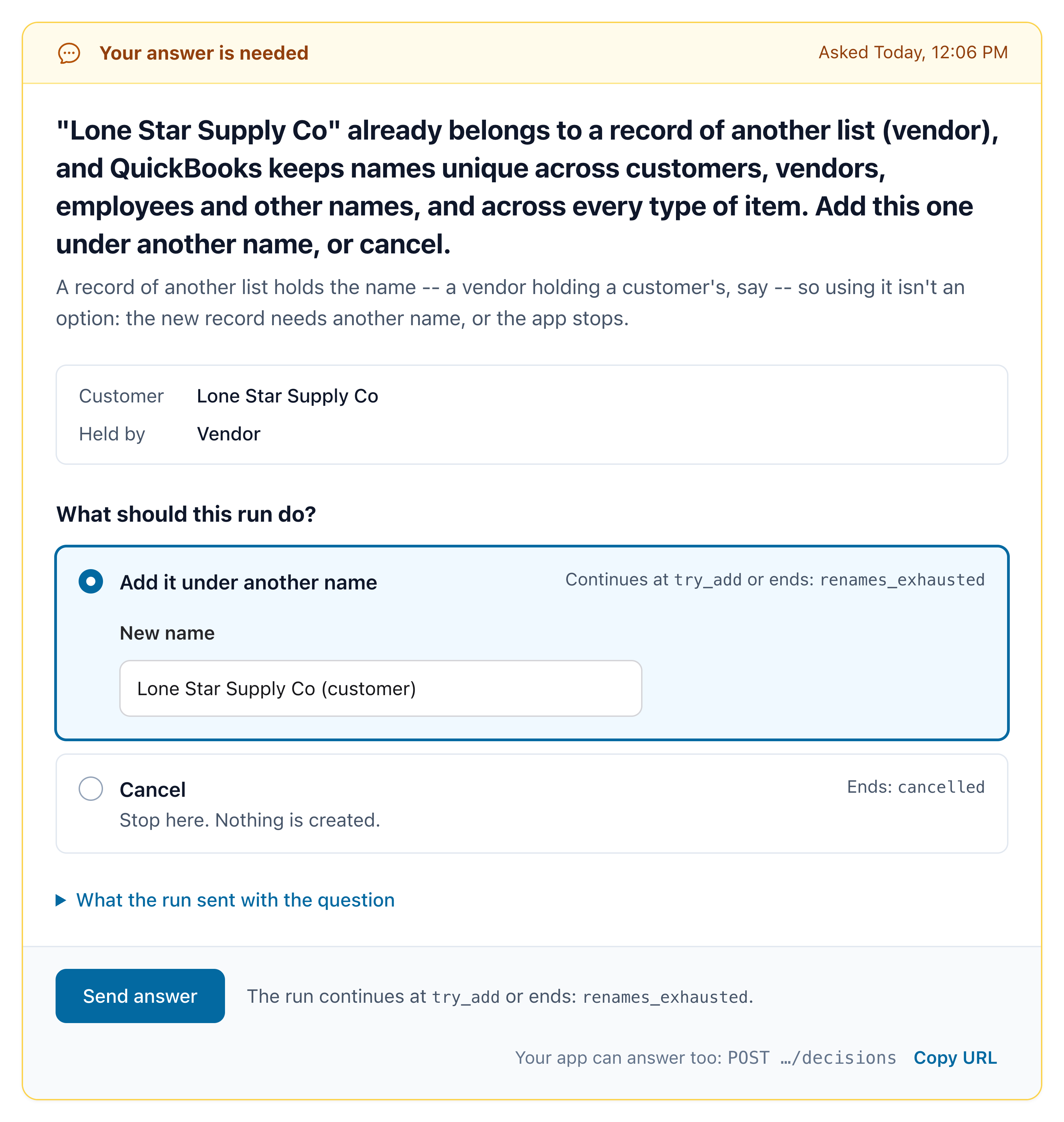
The same question on the run's page (links.ui), drawn from its details and choices as your app draws it. Answering here is the same as POSTing to links.decisions.
Get the result
workflow_run.completed. Its outcome is
created_renamed: store output.record.list_id against your record, and you’re done.The whole completed webhook
The whole completed webhook
headline says what happened in one sentence, for a log line or a status on your page: show it, never
parse it. output has only the keys this ending sets. The webhook’s summary is what your app acts on:
what the run changed in QuickBooks (changes: the action, the record’s kind and its ids, and item
for one element of a list) and every decision it was given (question, the prompt.id it answered, choice, at, and item for one element of
a list), plus unconfirmed when a change QuickBooks
never answered couldn’t be settled, notifications when the run sent your app data,
and stopped_at when it failed or was cancelled. The run itself (GET links.run) has the whole summary,
which also names the state that made each change (side_effects) and lists every request the run sent
(requests), the workflows it called (calls), what its matches found (matches) and what a cancel
withdrew (discarded). Those lists grow with the run, so a webhook leaves them out.Pick a template
Start from a shipped template rather than a blank chart. Each one is complete and tested, and a template that calls other workflows installs those too. The generic ones work for any record type.resolve, ensure
and upsert take a kind (customer, item_service, account, …) and a name, which they
match by rank against the connection’s name index. add_transaction takes any transaction add, and resolve_transaction and stream_query take
the query to send, such as {"operation": "customer.query", "params": {"active_status": "All"}}.
Find a record, without writing. Each asks your app to pick one when it isn’t sure.
webhook_url.
What each template takes, asks and ends with
What each template takes, asks and ends with
prompt.id is the path of the state that asks it, such as ask_use. When one workflow calls
another, the calling state comes first. resolve asks ask, ask_detail, ask_name or ask_pick, which
upsert and ensure relay as resolve / ask and the rest; resolve_transaction asks ask, and
void_transaction and record_payment relay find / ask. upsert relays ensure’s as taken / ask_rename (or ask_use). push_records relays upsert / resolve / ask (or upsert / taken / ask_rename)
for whichever record asks, and add_transaction relays find_references / ask (or ask_detail,
ask_pick, …) in its first pass and create_missing / ask_use (or ask_rename) in its second, for
whichever reference asks: prompt.from.item_index says which, counting from 0, and item_count how many
there are. Its own ask_missing asks about every missing record at once, between the two passes. An
add_transaction installed before it had ask_missing never asks it: install the template again with
--replace ("replace": true) to get it.Every template can also end failed, when something goes wrong that it doesn’t handle. error says why:
an object with QuickBooks’ code when QuickBooks refused something, a type, a plain message, QuickBooks’ own
words in quickbooks_message, and a hint.What each template returns in output
What each template returns in output
customer_ref, and for its first line’s item at invoice_line_add.0.item_ref. The lines come back in the
order sent: record.invoice_line_ret[0] is that first line, with its txn_line_id.GET /api/v2/workflow-templates/{key}/usage.md, or /usage for JSON: how to start it, every question it can
ask (its prompt.id, the options to answer with, and the webhook it arrives in) and every way it can end. It’s
the contract GET /api/v2/workflows/{key}/usage gives once the template is installed with the templates it
calls, so the questions and outcomes your app handles are known before anything is installed. The
CLI prints it with qube workflows templates add_transaction --usage.
In the dashboard, open Workflows and clone any template into your sandbox app.
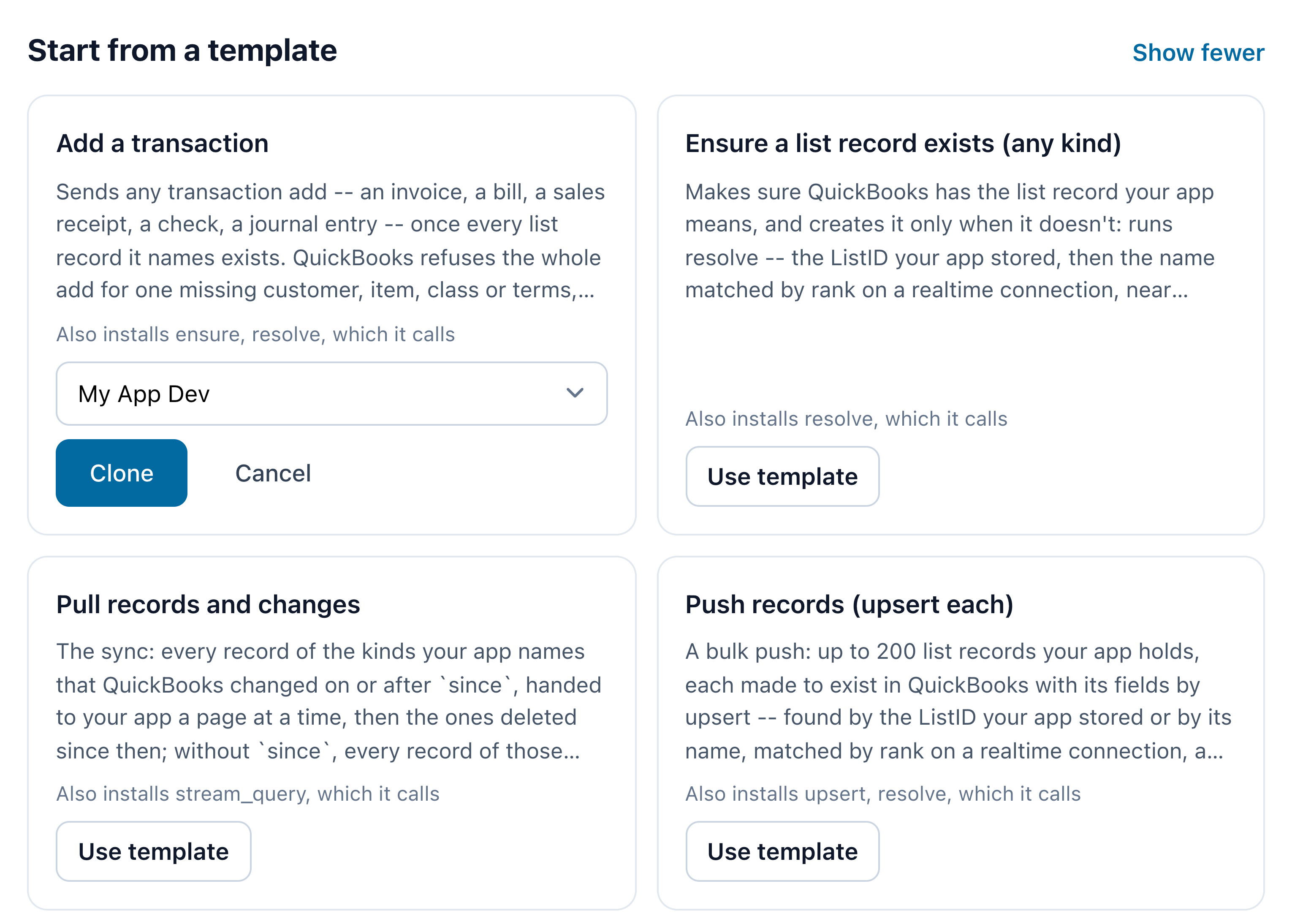
Workflows → Start from a template. A card names the templates it also installs.
What your app receives
A run reports to thewebhook_url it was started with, and sends nothing if it was started without one.
The QuickBooks requests it sends are ordinary queued requests, visible in the dashboard, but they don’t
send webhooks of their own: the run’s events are the whole story. They’re signed like every other QuBe
Sync webhook (verify them), and your endpoint answers the same way:
any 2xx within 5 seconds.
You start it
POST /workflow-runs answers 201, with the run running.While it runs
awaiting_input when it needs a decision, notification when it sends your app data.Once, at the end
completed, failed or cancelled.Handle them in a job
WorkflowRunEventJob, in Ruby
Handle them in a job
WorkflowRunEventJob, in Ruby
event
and handle the run’s in a job of its own:Answering a question
Every question arrives the same way, whatever it asks, so your app needs one screen for all of them, not a branch per question. Showprompt.message, then prompt.details (label and value rows: what the question
is about), then one button per entry of prompt.choices, in order: its label, with its description
and detail under it, and an input for each of its fields. POST the picked one’s id as choice, with
its fields in data, to links.decisions.
One choice per record the run found
resolve found, each is a choice of
its own: use:1, use:2, …, at most 25. Its value is QuBe Sync’s, so the choice has no fields and you
send {"choice": "use:2"}. Your app never handles the ListID or TxnID, and never sends one it picked
itself or one a person typed.A search for another
{"id": "use", "label": "Use this one"} with a field of type record. Fill it from
GET links.search?field=list_id&q=lone and send the value of the one picked:
{"choice": "use", "data": {"list_id": "80000012-1712345678"}}.kind, best first, from the connection’s name index. detail is for a person to read: the record’s list, then its company name, email, phone, city and postal code or account number where QuickBooks has them:
links.search carries the prompt’s token, so a search for a question the run has moved on from is a
409 prompt_changed. q is 2 to 100 characters (422 invalid_q), field must be a record field of one
of the choices, or a rows field’s record column (422 invalid_field), and while the index is still being built the search is a
409 name_index_building, as a match is. A connection downgraded to standard while a run is going has no
name index any more: a question asked after that offers no search choice and its links.search is null,
and a search for one asked before is 422 matching_requires_realtime. Workflows run only on realtime or simulated connections,
so a question’s search is there whenever its kind is one the index holds (every list but inventory sites, which resolve lists whole).
A table of rows
A field of typerows asks the same columns of each row of a list, in one question: add_transaction’s
ask_missing has a row for each record QuickBooks doesn’t have. Show it as a table. Its columns are shared
by every row (so your screen can set one column on many rows at once), and each row says which of them it
asks.
columns and its when holds over the row’s values and
what your user has picked so far, and show or hide it as they change. Search a record column with
GET links.search?field=records.list_id&row=customer_ref&q=lone: row picks that row’s list
(422 invalid_row without it when the list depends on the row). Answer every row, with only the columns
it asks:
422 missing_fields, named records.<key>.<column> (a
row left out is records.<key>); a column the row doesn’t ask, or a value outside its enum, is
422 invalid_data. An answer to a column that doesn’t apply is dropped.
A choice the prompt doesn’t offer is 422 invalid_choice, a field the choice doesn’t list (or a value of
the wrong type) is 422 invalid_data, and a missing required one is 422 missing_fields, each naming what
to fix while the run keeps waiting. options, the answers as the chart declares them, still work:
{"option": "rename", "data": {...}} answers too, which is how a chart’s own tests and an agent that reads
the chart answer.
Two kinds of question
workflow_run.awaiting_input carries the question in prompt, and prompt.kind says who is asking. Both
kinds are answered at links.decisions.
Both prompts, in full
Both prompts, in full
data.existing is the record that holds the name, which find_holder found and
read_holder read whole by its ListID, and its list says which list it’s on.
In the conflict, the run was changing Riverbend Electric’s phone and email. Since it read the record, someone
in QuickBooks changed the phone too, and the last name. The email isn’t in conflicts, because nobody else
touched it. The last name is in theirs, because the update doesn’t send it.Answering a conflict
Answering a conflict
{"option": "overwrite", "data": {"params": {...}}}. With them, the fields in params replace the ones the
update sent, and the run adds the record’s id and current edit sequence. params must be an object of fields the update takes, like data.sent.
One it doesn’t take is refused with 422 (invalid_data, naming the field), and the run keeps waiting.
If the record changes yet again first, the run asks again, and after three writes the 3200 stands as the
state’s error. With keep, the run carries on with the record as QuickBooks has it. To refuse both,
cancel the run.A conflict answer isn’t a step of the chart, so it isn’t in summary.decisions. It’s in the run’s event
log, as a decision_received event whose payload has "kind": "conflict".Sending your app data
A run can hand your app data while it goes, not only at the end: anotify state (“Send to the app” in
the builder) sends a workflow_run.notification to the run’s webhook_url, under a name your app
routes on. The usual use is a whole list, a page at a time: pull_changes sends page with seq 1, 2, 3…,
each naming its kind, the customers, then the vendors, then whatever else you asked for (with a since,
then one deleted), then workflow_run.completed with the counts.
Save each record by the connection the run is on, its kind and its list_id or txn_id, never by the id
alone: QuickBooks makes ids unique only within one list family of one company file (customers, vendors, employees
and other names share one), so another customer’s file (or a copy of this one) can hold the same ids.
The run waits for your 2xx before it goes on: notifications come one at a time, in seq order, and
all of them before the run’s ending, so workflow_run.completed means everything was sent. QuickBooks
isn’t held up: the pages keep being fetched while your app takes them. The run’s ending counts them:
summary.notifications has how many were sent and how many failed.
The notification payload
delivery_id, seq, name, state, from, data
The notification payload
delivery_id, seq, name, state, from, data
How a run ends
cancelled ending, when your app answered cancel, is a completed run: nothing is wrong.
Every ending's fields, and cancelling in detail
Every ending's fields, and cancelling in detail
outcome.
ensure ends renames_exhausted with the error Five renames were tried and every name was taken; the last was "<name>".Someone cancels a run with POST links.cancel or Cancel run. An optional {"reason": "..."} is kept
as cancel_reason, trimmed and cut to 500 characters. The workflows the run calls stop with it. Requests
not yet handed to the Web Connector are withdrawn; one already sent may still complete. The run says which
(GET links.run): withdrawn ones are in summary.discarded, and one still out is "status": "in_flight"
in summary.requests. Cancelling never undoes what was applied: summary.changes, in the
workflow_run.cancelled webhook too, lists it, so you can check or reverse it, and summary.unconfirmed
lists any change QuickBooks never answered that the run hadn’t settled yet. Cancelling a run that has ended is
409 already_finished.What the run handles for you
Two things can go wrong between a run and QuickBooks that a single request would leave to your app. A workflow handles both.Lost answers
Now and then QuickBooks gets a request and its answer never comes back: its computer lost its connection, or QuickBooks or the Web Connector was closed, while the request was being processed. On its own, such a request endstimed_out, and QuickBooks may or may not have applied it
(Error handling). A workflow doesn’t leave that to you; the run settles the request: it constructs a fingerprint from the original request details and queries QuickBooks to find out if it was applied.
summary.changes like any other, with settled,
and the run’s page lists it as “confirmed after a lost answer”. A transaction found this way is then read
whole by its TxnID, so add_transaction’s output.record has its lines either way.summary.unconfirmed and
on the run’s page as Not confirmed: it may or may not be in QuickBooks, so look before sending it again.
To watch it happen, use a simulated connection to arm a lost answer fault before a run sends a creation request. On the connection’s page, set Next
request to “the next add, change or delete is applied, then the Web Connector dies before answering”, run
qube simulator faults <connection> --next lost, or set the simulator’s
next_lost_response fault through the API. The fault waits for the next request
that changes the company file, so the lookups a run sends first are answered normally, and the first add, change or
delete is applied and its answer lost. How the run settles each kind of
request, and how a chart can do the looking itself, is in
Settling lost answers.
Conflicts
QuickBooks refuses an update based on stale data: error3200, a stale edit_sequence.
Retrying with the fresh edit sequence would quietly overwrite whatever the other person changed. A workflow
looks first and compares each field in the update request with the more recent version in QuickBooks.
Typed starts in your code
Your app’s published workflows have types:GET /api/v2/workflows/types returns each one’s input as JSON
Schema, with the body of a QuickBooks operation as a reference to that operation’s params. Each library
has a generator that turns it into a start method per workflow, and one per operation where an input
picks the operation, with the field docs and types the library’s operation methods already have:
add_transaction.invoice(...) and in Node addTransaction.invoice(...), and the input
types have the same names in both (AddTransactionInvoiceInput).
invoice_input(...) builds the same input without starting a run, which is what an operation class’s
input returns. The file is checked in. Run the generator again when you publish a change, and with
--check in CI: it exits non-zero once the file’s digest differs from the server’s (and only warns when it
can’t reach QuBe Sync). --drafts types each workflow’s working copy where it has one, to write code against
a version before you publish it.
A body’s required fields are the operation’s, less the ones the workflow sets itself (record_payment
fills the payment’s customer_ref, total_amount and applied_to_txn_add from the invoice), which the
generated types leave optional and their docs name.
The types are a hint, never the authority: QuBe Sync checks every start, so a stale file means a missed
type, not a wrong run. A start with a field the operation doesn’t take is a 422 naming it.
Follow your runs
Every run has a page in the dashboard, at itslinks.ui. Workflow runs in the dashboard’s menu lists them all.
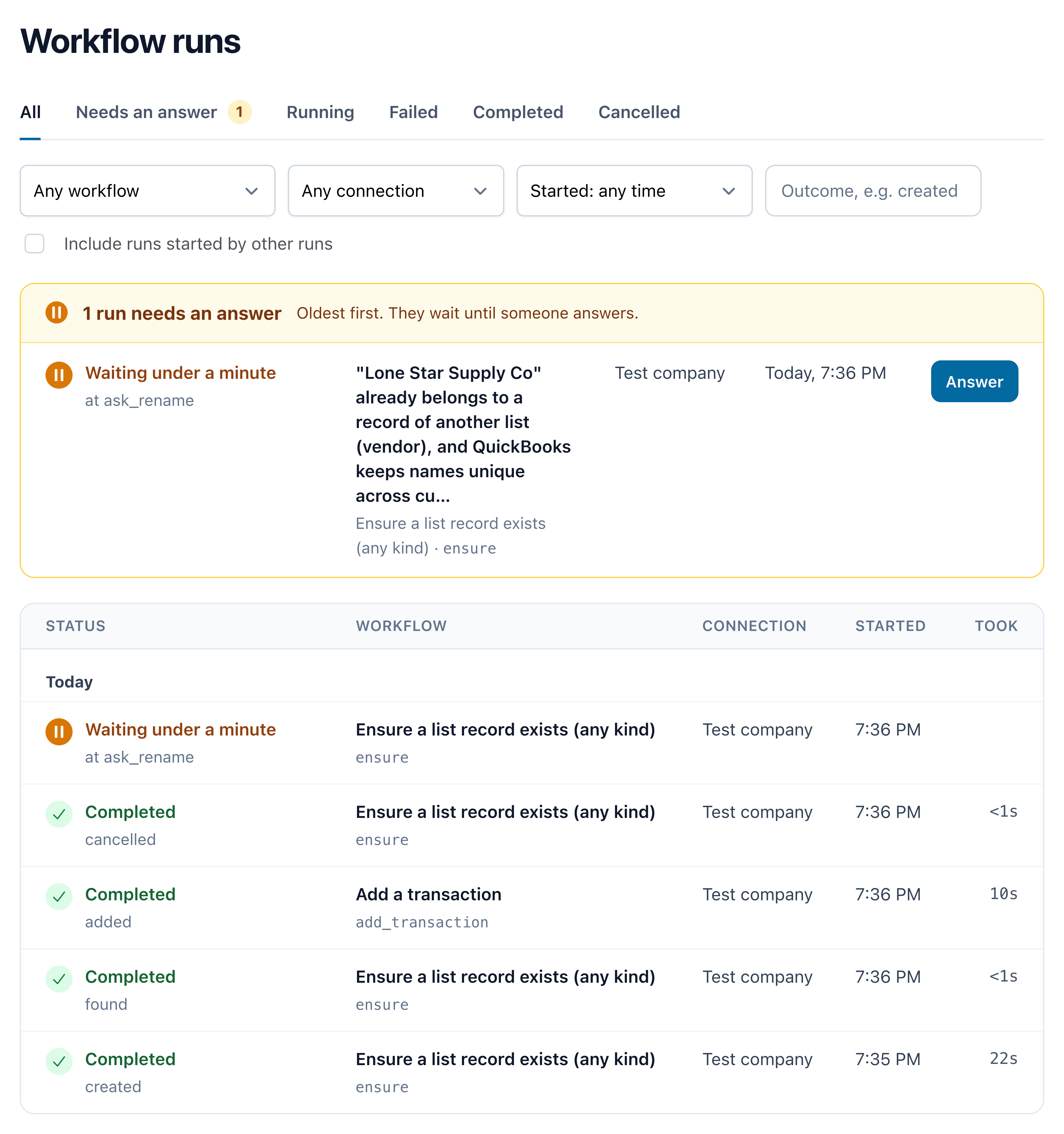
Workflow runs: the ones waiting for an answer first, then every run with where it is or how it ended.
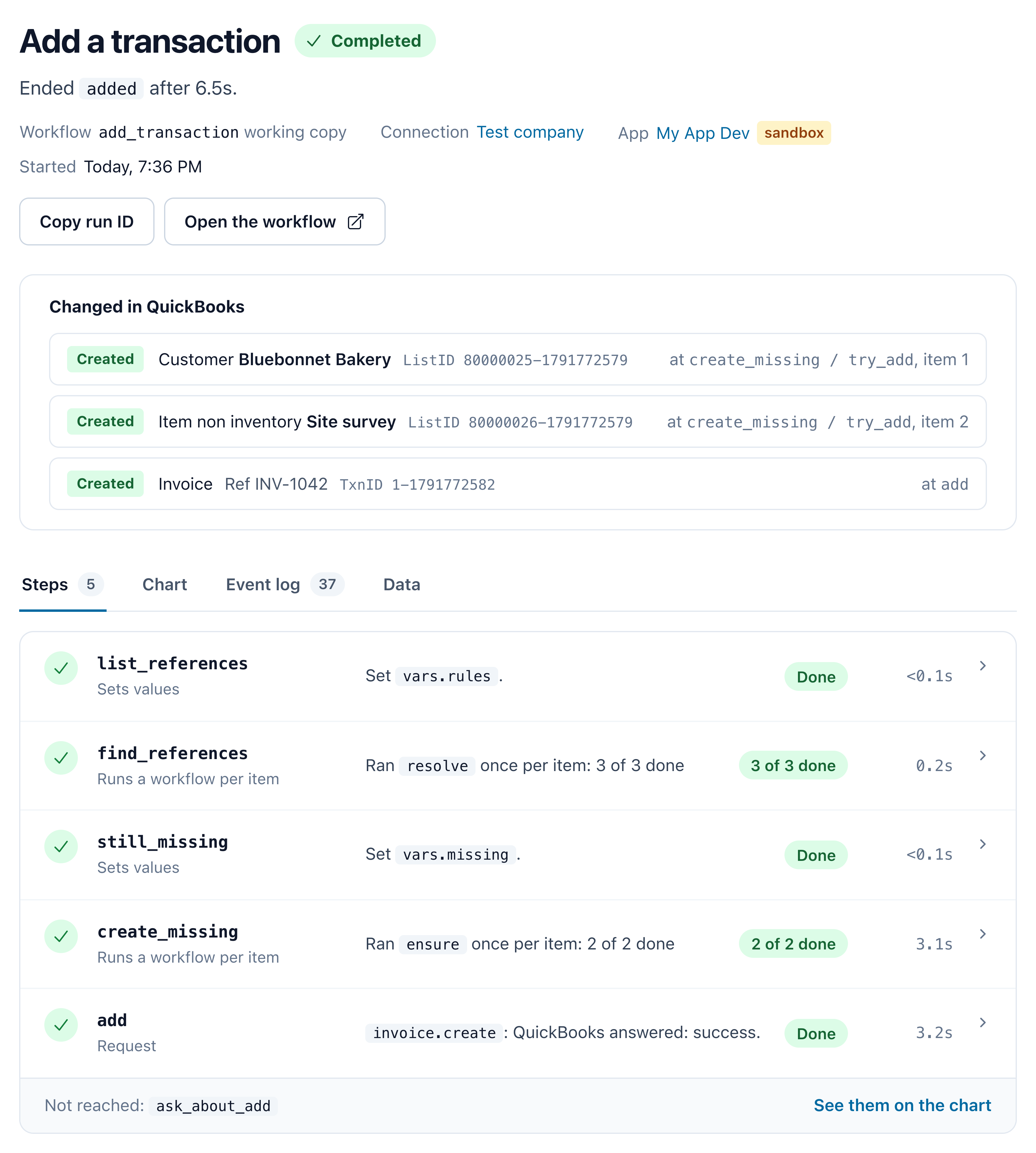
A finished add_transaction run: what it changed in QuickBooks, and its steps.
GET /connections/{id}/workflow-runs?state=awaiting_input lists the runs waiting on your
users, and ?reference= the runs you started with a reference.
The API at a glance
All underhttps://qubesync.com/api/v2/connections/{connection_id}, with your app’s API key. The
API reference has every field.
Good to know
Starting a run twice runs it twice
unless both calls carry the same Idempotency-Key
Starting a run twice runs it twice
unless both calls carry the same Idempotency-Key
Idempotency-Key to make sure you’re not starting duplicate runs. See Retrying a call safely.
The run’s new reference makes a good key: the record’s id plus a UUID, made once when your app decides
to start the run, saved on the record, and sent again only to retry that same start. QuBe Sync’s
libraries send the reference as the key for you. Never build either from the record alone
(order-1042): the next run for the order would get the first run back (or a 422, if its input differs)
instead of starting, and once the first run is purged (60 days after it ends) a retried start would start
a new one. A reference of its
own for every run also keeps the first run’s webhooks from being taken for the second’s, whose revisions
start again at 1.Answer at links.decisions, and a retry is safe
Answer at links.decisions, and a retry is safe
prompt.token to distinguish between questions that look the same (e.g. a wait in a loop, or a workflow called once per item), and links.decisions carries it (?prompt_token=…). It serves as an idempotency key of its own: if your answer gets no response, you can safely send it again to the same link without accidentally answering the run’s next question. Once the run has asked again, it’s refused with 409 prompt_changed and nothing changes. On a retry, a 409 or a 400 not_awaiting_input means your first answer landed or someone answered on the run’s page. If you build the URL yourself, send the token as prompt_token in the body; without one, an answer is taken for whatever the run is
asking when it arrives.The run goes on as soon as your answer lands, so the webhook it sends next (the next question, or workflow_run.completed after a cancel) can arrive before your POST is answered. The response carries the run’s revision as webhooks do: apply whichever is newer (early and out of order).Workflows are composable
Workflows are composable
workflow state runs another workflow as one step, optionally once per item in a list (each). When building complex flows, prefer combining simpler workflows rather than shoving everything into one chart.A chart can identify a record by name
the match state
A chart can identify a record by name
the match state
match state identifies a list record by name: ACME, Inc. finds Acme Inc, whatever the punctuation,
company suffix or word order. It is the ranked
match the matches endpoint does, after the run catches the connection’s name
index up with QuickBooks (unless that was done in the last minute, which the matches of one burst share). A run still going when its connection is downgraded to standard sends QuickBooks’ own “contains” filter instead, so
it can finish. The chart branches on response.data.match, and uses only an
exact match without asking: see Matching names in a chart.An installed template is a copy
An installed template is a copy
"replace": true. template.status on GET /workflows tells you when there’s one to take.Production runs the published version
Production runs the published version
Limits
Limits